Set Up a Day Trading Workspace in 30 Minutes
A fast-start guide to setting up a day trading workspace in 30 minutes — pick a lean tool stack, dial in hardware and network basics, compare brokers, build a reusable chart template, configure scanners/alerts, and streamline news + calendar workflows.
Set Up a Day Trading Workspace in 30 Minutes
A fast-start guide to setting up a day trading workspace in 30 minutes — pick a lean tool stack, dial in hardware and network basics, compare brokers, build a reusable chart template, configure scanners/alerts, and streamline news + calendar workflows.
Ever sit down to trade and realize your charts are missing, alerts are firing nonstop, and you’re hunting for the same tickers in three different apps? That chaos costs focus—and in day trading, focus is part of your edge.
This guide gets your workspace operational in 30 minutes with a simple, timeboxed setup: hardware defaults that won’t slow you down, a broker choice you can justify, a clean charting template, scanners and alerts that surface only what matters, and a news/calendar flow you can run every session.
Tooling Blueprint
You’re building a single loop: spot a setup, confirm context, execute fast, then record it. The 30‑minute constraint forces only the pieces that reduce decision time and execution errors.
30‑Minute Goal
In 30 minutes, you want a functional trading station, not a perfect one. Your outcome is simple: you can go from “news hit” to “order filled” without hunting through tabs.
Broker is logged in with market data active, charts load the right tickers, and news plus alerts fire on cue. Hotkeys work, and you’ve run a rehearsal checklist like “levels → catalyst → risk → size → exit.”
If any link forces you to pause and think, that’s the first thing to fix tomorrow.
Stack Overview
Pick one tool per job, then connect them with a consistent symbol workflow. “Required” means you can place and manage trades safely.
- Broker (required): routing, position, risk controls
- Charting (required): levels, indicators, layouts
- Market data feed (required): real-time quotes
- News (required): catalysts and halts
- Scanner (optional): movers and volume filters
Optional tools help you find trades faster, but required tools prevent dumb mistakes.
Prereqs Checklist
Gather credentials and access before you start the clock. Nothing burns time like a surprise 2FA prompt.
- Broker login, 2FA device, backup codes
- Market data subscription active, symbol permissions verified
- Charting login, layouts saved, real-time enabled
- News/scanner login, alerts permission allowed
- Admin access for installs and hotkey permissions
If you can’t sign in cleanly, you don’t have a trading setup yet.
Timeboxed Plan
Run four tight blocks, then verify end-to-end. You’re shipping a workflow, not organizing a desktop.
- Minutes 0–7: Broker login, enable data, confirm positions and buying power.
- Minutes 7–14: Charting setup, load watchlist, save layout, add key levels.
- Minutes 14–21: News and scanner, set alerts for symbols and keywords.
- Minutes 21–28: Hotkeys and order presets, test in paper or minimum size.
- Minutes 28–30: Verification, run the checklist and simulate one trade.
Your deliverable is one clean rehearsal from alert to exit, with no guessing.
Hardware in Minutes
You want hardware that disappears when the tape speeds up. Think “stable screens, stable internet, dumb-simple inputs.”
Example goal: you can place a bracket order without moving your hands off home row.
Monitor Layout
Pick one layout so your eyes stop hunting during volatility. Then lock each app into a permanent zone.
| Layout | Charts zone | Execution zone | Info zone |
|---|---|---|---|
| Single ultrawide | Left 60% | Right 25% | Right 15% |
| Dual monitors | Left monitor | Right lower | Right upper |
| Zone assignment | 2–4 charts | Order entry | Scanner + news |
| Rule of thumb | Fewer windows | Bigger buttons | Fast headlines |
If a window moves, your attention moves too.
Network Baseline
Your edge dies on packet loss, not bad ideas. Get to “wired primary, tested backup” in minutes.
- Plug in Ethernet for your main connection.
- Turn on phone tether as a backup path.
- Run a ping test to your broker gateway.
- Run a jitter test and save results.
- Reboot modem and router if jitter spikes.
If tether beats Wi‑Fi, your router is the trade to fix.
Input Devices
You need inputs that reduce clicks under stress. Set three actions that always work, even half-awake.
- Use a reliable mouse with a clickable wheel.
- Use a keyboard with consistent key travel.
- Map programmable keys for common order actions.
- Add a Stream Deck for single-tap macros.
- Set hotkeys: paste ticker, bracket, cancel all.
Your hands should feel bored, even when price isn’t. (If you’re building around hotkeys/scripts, keep an eye on DAS Trader platform updates for changes that affect your workflow.)
Ergonomic Defaults
Fast sessions punish sloppy posture. Set three defaults so fatigue doesn’t pick your exits.
Chair: hips slightly above knees, feet flat. Monitor: top third at eye level, one arm’s length away. Lighting: bright and indirect, no screen glare.
If your neck tightens, your risk tolerance quietly changes.
Choose Your Broker
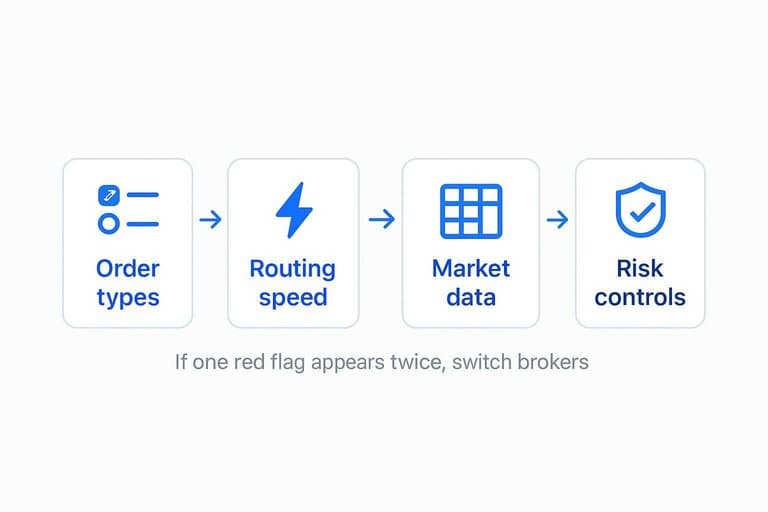
Pick a broker that fits day trading, not long-term investing. You’re buying execution speed, stable data, and risk controls you can trust.
| What to verify | Why it matters | Quick check | Red flag |
|---|---|---|---|
| Order types | Precise entries, exits | Bracket OCO support | Market-only orders |
| Routing speed | Better fills, less slip | Route options shown | “Best effort” fills |
| Market data | Clean real-time decisions | Level II available | Delayed quotes |
| Risk controls | Prevent account damage | Max loss limits | No kill switch |
| Platform support | Fewer crashes, less lag | Native desktop app | Web-only platform |
If one red flag appears twice, switch brokers before you touch your layouts.
Charting Platform Setup
Your charting platform is your cockpit. Set it up once, then trade the same way every session.
Example: if you have to “rebuild my charts” after a reboot, you’re donating focus to the market.
Platform Options
Pick a platform based on what you trade and how fast you need feedback. Decide with speed, total cost, and broker fit in mind.
| Platform | Speed | Cost | Integrations | Learning curve |
|---|---|---|---|---|
| TradingView | Medium | Low-Med | Many brokers | Low |
| Thinkorswim | Medium | Often free | TD/Schwab | Medium |
| NinjaTrader | High | Med-High | Futures focused | Medium-High |
| DAS Trader Pro | Very high | High | Many brokers | High |
| IBKR TWS | Medium | Low | Native IBKR | High |
Optimize for execution and data reliability first. Pretty charts don’t fill orders.
Install and Sign In
Install once, then lock down access and sessions. You want fast launches and fewer “why am I logged out?” surprises.
- Download and install the desktop app, not just web.
- Enable 2FA and store backup codes offline.
- Set a session timeout that matches your household risk.
- Sign in on your second device and confirm settings sync.
- Confirm market data is active on a major index symbol.
Treat login friction like a risk control. It’s part of your edge.
Connect Broker/Data
Connect your broker or data feed before you touch layouts. Otherwise you’ll tune charts on delayed prints.
- Link the broker connection and confirm account selection.
- Enable symbol permissions for stocks, options, or futures.
- Check whether quotes are delayed or real-time.
- Toggle paper trading on and label it clearly.
- Verify with one liquid ticker like SPY or AAPL.
If SPY prints look wrong, stop. Fix data before decisions. (For an example of what “market data subscriptions” can look like at a broker, see IBKR market data pricing.)
Build Chart Template
Build one template you can reuse without thinking. Use indicators that support decisions, not decoration.
- Add VWAP for intraday bias.
- Add EMAs for structure and pullbacks.
- Add volume for confirmation and traps.
- Add ATR for position sizing and stops.
- Create 1m, 5m, 15m, plus daily context.
The goal is muscle memory. When price moves fast, you won’t have time to hunt tools.
Save Workspaces
Name templates like you’ll need them under stress: “Scalp_1m-5m_Daily” beats “New Layout 3.” Export your workspace, then set auto-restore on launch so a crash doesn’t reset your day.
Put a backup in a cloud folder or external drive. Your charts are part of your disaster recovery plan.
Scanner and Alerts
A scanner and alerts layer flips your workflow from “hunt” to “respond.” You want the market to tap you on the shoulder when your setup appears, not after the move is gone.
Scanner Tooling
Pick one primary scanner and one backup so you’re never blind. You’re optimizing for speed, reliability, and easy alert handoff.
- Use broker scanners for fast fills and direct routing
- Use TradingView Screener for quick filters and chart checks
- Use Finviz for broad, end-of-day style discovery
- Use Trade Ideas alternatives for automated pattern hunting
- Use watchlist-based scanners for tight focus
Your edge comes from fewer tools that you actually trust under pressure.
Core Scan Recipes
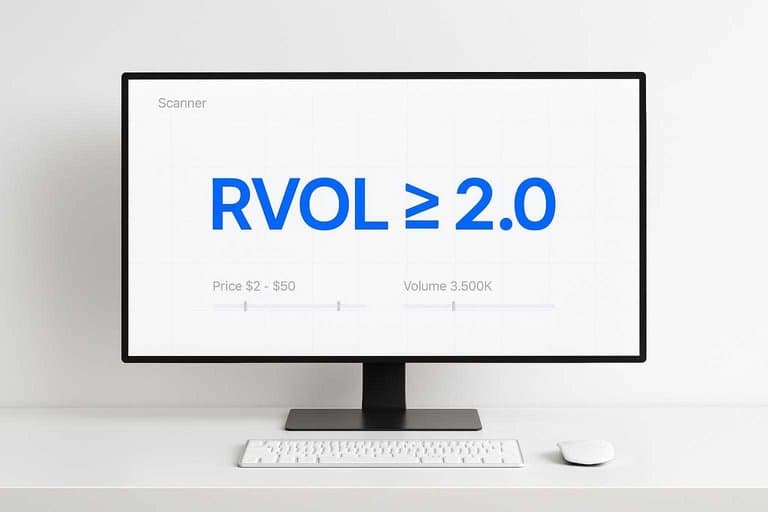
Build three scans you can run in under 10 seconds each. Use hard thresholds so results stay small.
- High relative volume: RVOL ≥ 2.0, price $2–$50, volume ≥ 500k.
- Premarket gappers: gap ≥ +3% or ≤ -3%, premarket volume ≥ 200k.
- Trend pullbacks: above VWAP and 20 EMA, pullback 0.5–1.5 ATR.
If a scan returns 50 names, it’s not a scan. It’s procrastination.
Alert Rules
Alerts should fire on rules, not feelings. Set them once, then stop babysitting charts.
- Breakout: alert on high-of-day break with volume spike threshold.
- VWAP reclaim: alert when price reclaims VWAP after below-VWAP hold.
- Volatility expansion: alert on ATR spike or range break over 15-minute high.
- Delivery: push to phone, desktop pop-up, and one distinct sound.
When every alert sounds the same, every decision feels the same.
Noise Controls
Alerts without limits turn into a slot machine. Put guardrails on frequency, time, and symbols, or you’ll trade your own distraction.
Use time windows like “open to 11:00” and “power hour only.” Limit alerts to your A-list watchlist, not every ticker that twitches. Throttle repeats with cool-downs, like one alert per symbol per 10 minutes.
If your alerts trigger boredom or panic, your system is training you to overtrade.
News and Calendar
You trade reactions, but catalysts set the stage. A fast news feed and a strict calendar keep you from getting blindsided by “Fed speaker at 10:00” or an unexpected downgrade.
News Sources
You want speed, relevance, and a backup when one feed lags. Latency is the difference between “nice headline” and “already moved.”
| Option | Cost | Typical latency | Best use |
|---|---|---|---|
| Broker news | Free | Medium | Basic headlines |
| Benzinga Pro | Paid | Low | Fast catalysts |
| Dow Jones (via platform) | Paid | Low-medium | Confirmed stories |
| Bloomberg snippets | Paid | Very low | Macro, breaking |
| X lists (curated) | Free | Variable | Early chatter |
Treat X as a smoke alarm, not a fire report.
Calendar Setup
Your calendar is a risk map, not a trivia list.
- Add high-impact economic releases for your market hours.
- Add Fed speakers, minutes, and rate decisions.
- Add an earnings calendar for every ticker you trade.
- Create alerts 15 minutes before major events.
- Block a “no-new-trades” window around the release.
If you can’t name the next catalyst, you’re trading blindfolded.
Ticker Watchlists
Watchlists cut your decisions down to a small, repeatable universe. Build them once, then refresh daily.
- Main focus tickers you trade weekly
- Earnings today, premarket and after-hours
- High ATR names for range
- News-active tickers with fresh catalysts
- “Do not trade” list for landmines
Sync them to your scanner and charts, or you’ll chase whatever flashes first.
Headline Workflow
Headlines are only useful if they change your plan. You need a one-pass flow you can run in seconds.
Read once, then tag it: earnings, guidance, macro, analyst, legal, or offering. Set a no-trade window if the event is imminent, and adjust your sizing assumptions if volatility just changed.
The edge is not “knowing the news.” It’s reacting the same way every time.
Run One Dry Session Before You Risk Real Money
- Open your saved chart workspace, load your primary watchlist, and confirm templates/timeframes apply correctly.
- Trigger a scanner run and verify alerts fire once, route to the right channel, and include ticker + condition + time.
- Check news and the economic calendar side-by-side, then practice your headline workflow on one ticker.
- Place a small test order in paper trading (or the smallest live size), confirm hotkeys/inputs, and note any friction to fix before tomorrow.
Frequently Asked Questions
How much money do I need to start day trading with a real account?
Most new day traders start with $500–$2,000 in a cash account to learn execution and risk limits; U.S. stock margin day trading usually requires $25,000+ to avoid PDT restrictions. Start small and scale only after consistent results and tight risk control.
Is day trading still worth it in 2026 with algo trading and AI tools?
Yes, for most liquid markets there’s still plenty of intraday opportunity, but your edge usually comes from speed, risk management, and a repeatable plan—not “secret indicators.” Expect tougher competition and focus on one setup and one market until you’re consistently profitable.
How do I measure whether my day trading workspace and process are actually improving my results?
Track execution metrics like average slippage, time-to-entry, missed trades, and order error rate, alongside P&L metrics like win rate and average R (risk units). A simple journal in Excel/Google Sheets or tools like TraderVue/Edgewonk can show whether the workflow reduces mistakes and improves consistency over 2–4 weeks.
Can I day trade effectively with one monitor and a laptop, or do I need multiple screens?
You can day trade with one screen if you limit your universe (one market, a few tickers) and use workspace layouts with hotkeys and tabbed charts. Multiple monitors mainly reduce context-switching and help if you’re scanning many symbols or managing multiple positions.
How long does it take to become consistently profitable at day trading?
Most traders need 6–18 months of focused practice to reach consistency, assuming daily journaling and strict risk limits. Look for process milestones first (following rules for 20+ sessions) before expecting steady monthly profitability.
Upgrade Your Stock Selection
Once your screens, broker, charts, scanners, and news are in place, the real edge comes from finding the right names to focus on each day.
Open Swing Trading ranks daily relative strength across ~5,000 stocks and adds breadth, sector/theme rotation context so you can build focused watchlists fast—get 7-day free access with no credit card.
Sources
- DAS Trader — Platform Updates (hotkeys/scripts and order-entry logging) — referenced in Input Devices
- Interactive Brokers — Market Data Pricing (subscriptions and real-time data notes) — referenced in Connect Broker/Data