Set Up Open-Time Alerts in 5 Minutes
A quick-start guide to setting up open-time alerts in under five minutes—define the exact event and timing, gather the required details, configure fast alerts via calendar and phone timers, add SMS/push when needed, and harden everything with redundancy and final testing.
Set Up Open-Time Alerts in 5 Minutes
A quick-start guide to setting up open-time alerts in under five minutes—define the exact event and timing, gather the required details, configure fast alerts via calendar and phone timers, add SMS/push when needed, and harden everything with redundancy and final testing.
Ever missed an opening time by a few minutes and watched the best slots, tickets, or drops disappear? It usually isn’t bad luck—it’s an alert that was vague, late, or sent to the wrong place.
This guide shows you how to set a precise goal, collect the key info once, and set up a fast calendar alert plus a backup phone timer. If you need SMS or push notifications, you’ll wire a simple trigger and test it. You’ll finish with a failure-proof checklist so you don’t miss go-time again.
Define Your Alert Goal
Before you set anything up, define what “open time” actually means for your situation. “Store opens at 9” differs from “tickets drop at noon,” and alerts fail when you mix them.
Pick the event
Choose one trigger, or you’ll alert on the wrong moment.
- Store opening
- Registration opening
- Ticket release
- Booking window
If you can’t name the trigger in six words, you don’t have an alert yet.
Set the timing
Decide when the alert should fire, and how persistent it should be.
- Fire exactly at open
- Fire 5 minutes before
- Send daily reminders until open
- Alert when timezone shifts
Pick one “must-not-miss” moment, then add redundancy only if you need it.
Choose the channel
Your channel decides whether you actually see the alert when it matters. If you’ve ever said “I didn’t notice the email,” you already know the failure mode.
Push and desktop notifications are fast but easy to miss. SMS is hard to ignore but costs money. Email is searchable but slow. Calendar pop-ups are great when the time is fixed.
Choose the channel you’ll notice during your busiest hour, not your quietest one.
Capture the details
Write the details down once, so you don’t re-interpret them later.
- Save the source URL for the official open time.
- Record the opening time exactly as written, including date.
- Note the timezone shown, or infer it from the source.
- List required login steps, including 2FA or queue links.
If your alert doesn’t include timezone and access steps, it’s just a guess.
Collect Required Info
Create one note before you touch any alert builder. You’re preventing the classic “where’s that URL again?” stall.
| Field | Example | Where to get it | Why it matters |
|---|---|---|---|
| Store name | Acme Coffee | Google Business Profile | Labels the alert |
| Store URL | gbp.link/acme | Share button | Validates location |
| Business hours | 7am–6pm | GBP hours tab | Checks open time |
| Time zone | America/Chicago | Store address | Avoids wrong triggers |
| Alert destination | ops@acme.com | Team inbox | Routes to owners |
If any field is missing, you’ll debug the alert instead of shipping it.
Fastest Setup: Calendar
A calendar alert is the fastest way to get a reliable “open-time” ping. You’re using a system your phone already respects for timezone, lock screen alerts, and Do Not Disturb rules.
Create the event
Create one event that points to the official source, not a screenshot or rumor.
- Create a new event titled “Opens”.
- Set the exact open date and time.
- Set the event timezone to the source timezone.
- Paste the official page link in Location or Notes.
Your calendar becomes the single source of truth, not your group chat.
Add notifications
Add two alerts so you can react, then act.
- Add an “early warning” alert, like 30 or 60 minutes before.
- Add an “at open” alert, set to 0 minutes before.
- Choose popup for immediate visibility.
- Choose email only if you reliably check inbox.
If you miss the early warning, the at-open alert is your last clean shot.
Verify timezone
Confirm the event timezone matches the source before you trust the alert. One DST flip can move you an hour and ruin the whole plan.
In Google Calendar, set the event’s timezone explicitly and avoid “floating time.” On Apple Calendar and Outlook, edit the event timezone or lock the calendar’s default timezone to the source city, like “America/New_York.”
If the source publishes in one city, lock to that city and stop doing mental math.
Test it quickly
Test now, not on launch day.
- Duplicate the “Opens” event.
- Set it for 3 minutes from now.
- Keep your phone unlocked and locked once each.
- Confirm the alert shows on your lock screen.
- Fix notification permissions if nothing appears.
A three-minute test beats a one-time miss.
Backup Alert: Phone Timer
A phone timer is your last-resort alert when calendar sync breaks or notifications vanish. Treat it like a device-level fail-safe you can hear, feel, and trust.
Set a countdown
Set a countdown that ends exactly at open time. Label it so you recognize it instantly.
- Calculate minutes until open time.
- Open your Clock app and choose Timer.
- Set the duration and name it “OPEN TIME — NOW”.
- Turn on sound and vibration.
- Start it and lock your phone.
If the timer ends and you ignore it, nothing else matters.
Add a second alarm
Timers can be dismissed fast, so add a second, harder-to-miss alarm. Use a tone you never use for anything else.
- Create an alarm for the exact open time.
- Set a unique loud tone, not your default.
- Enable vibration and snooze.
- Add a “Get ready” alarm 10–15 minutes earlier.
- Put both alarms in the same label group.
Two different alert types beats one perfect setup.
Avoid common blocks
Your alerts can be perfect and still fail, because the phone silences them. The usual culprits are Focus modes, DND, and permission settings.
Check Do Not Disturb and Focus schedules, plus “Silence” toggles that mute while locked. Also confirm alarms are allowed to bypass Focus, and that Clock has sound permission set correctly.
Fix the phone settings once, or you’ll keep debugging “random” misses.
On Android, it also helps to understand how the OS handles schedule alarms and exact timing so your backups don’t get delayed or blocked.
If You Need SMS/Push
SMS or push is for the moment you’re away from your desk. You want a loud, lock-screen alert that says “open now,” not a quiet calendar reminder.
Pick a tool
Choose the tool that matches your phone and your tolerance for setup.
- Use IFTTT for simple phone-first automations
- Use Zapier for app-to-app workflows
- Use Pushover for reliable push priority
- Use Telegram bot for free cross-device alerts
- Use iOS/Android Shortcuts for built-in automation
Pick the one you’ll actually keep enabled all week.
Create the trigger
Set a scheduled trigger that hits your opening time, every time.
- Create a new automation and pick “Schedule” as the trigger.
- Set the opening time and confirm the timezone is correct.
- Add a second trigger 5–10 minutes before, if prep matters.
- Restrict the schedule to the days you’ll actually act.
If the timezone is wrong, the best message in the world is useless.
Write the message
Your alert should tell you what to do in one glance. Write it like a command you’d send yourself: “Open now. Use saved login.”
Include: the direct link, a quick login note, and a clear “open now” instruction.
The goal is zero thinking, even half-asleep.
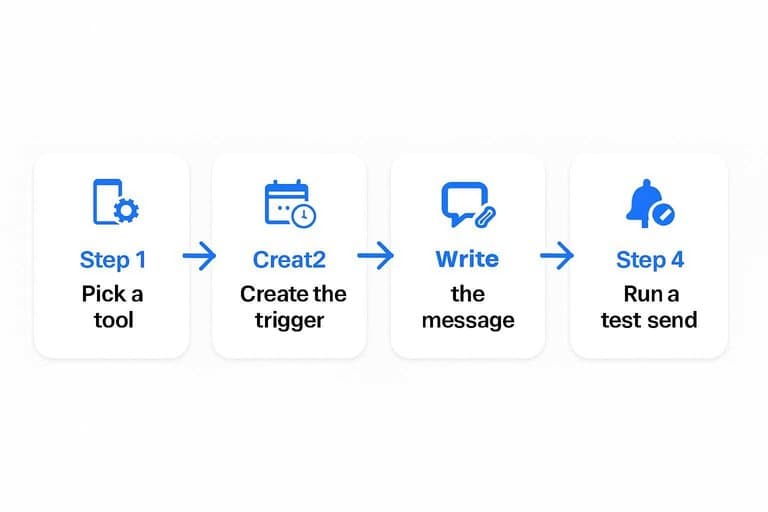
Run a test send
Test it under real conditions, not in a quiet room.
- Schedule a test alert for 2 minutes from now.
- Lock your phone and wait for the notification.
- Confirm sound/vibration and lock-screen visibility.
- Tap through and verify the link opens correctly.
Fix notification settings now, not on launch day.
Make It Failure-Proof
Your alert is only useful if it still fires on a bad day. Busy, offline, or on the wrong device should not matter.
Redundancy checklist
Use two independent channels so one failure doesn’t silence you.
- Create a calendar event with two reminders
- Set a separate phone alarm for the same time
- Add a secondary device for high-stakes drops
- Share the event with a trusted backup person
If you rely on one channel, you’re trusting one bug, one mute switch, or one dead battery.
Notification hardening
Your settings can quietly sabotage alerts, especially after updates.
- Enable critical alerts, if your OS supports it
- Whitelist the alert app in Focus or Do Not Disturb
- Disable battery optimization for alert apps
- Allow notifications on lock screen
- Turn on sound and vibration
Make notifications boringly unstoppable, because “I never saw it” is a settings problem.
Pre-open prep
Ten minutes before open is when you remove friction. You want one click, not a scramble.
Log in now. Save payment details, prefill forms, and keep the right tabs open.
The alert should start the action, not start your troubleshooting.
Final live test
Run one realistic test so you don’t discover issues at the worst moment.
- Pick a time 10 minutes from now and set the alert.
- Wait for the notification on your main device.
- Tap through to the exact link or page you’ll use.
- Confirm login and payment steps work end-to-end.
- Repeat once on your backup device.
If the test feels too easy, good. Easy is what survives pressure.
Lock It In Before Go-Time
- Run a final live test: confirm the alert fires on the correct device, at the correct local time, with a clear message.
- Add redundancy: keep a calendar notification plus a phone timer (and SMS/push if the opening is high-stakes).
- Harden notifications: disable Do Not Disturb exceptions as needed, allow lock-screen alerts, and set a loud tone/vibration.
- Prep for the open: save the link/login, payment details, and any required codes so the alert leads directly to action.
Frequently Asked Questions
What time does the stock market open in the US, and is that the same as pre-market hours?
The NYSE and Nasdaq usually open at 9:30 a.m. ET, while pre-market trading often runs from 4:00 a.m. to 9:30 a.m. ET depending on your broker. Your alert should match whether you mean the official open or the start of pre-market access.
Does the stock market open at the same time every day, including holidays and half-days?
No—markets are closed on US market holidays and sometimes close early (often 1:00 p.m. ET) on scheduled half-days. Check the official NYSE holiday calendar each year to avoid alerts firing on closed days.
If I’m outside the US, how do I convert “stock market when does it open” to my local time accurately?
Convert 9:30 a.m. ET to your local time and account for US daylight saving time shifts, which can change the local equivalent by an hour. A reliable approach is using a world clock tool (like timeanddate.com) or setting alerts that follow the “America/New_York” timezone.
How can I set an alert for the market open on trading days only (Monday–Friday) without getting weekend alerts?
Use a recurring weekday schedule (Mon–Fri) and then manually exclude US market holidays or add a separate “market closed” calendar to cross-check. Most traders also add a quick weekly review to confirm the upcoming week has no closures.
What’s the difference between NYSE/Nasdaq open and futures market open, and which should I alert for?
NYSE/Nasdaq refer to the stock market open at 9:30 a.m. ET, while major US equity index futures trade nearly 24/5 and reopen Sunday evening (typically 6:00 p.m. ET). Alert for the session that matches when you place trades—stock open for equities, futures reopen/open for futures trading.
Be Ready at the Open
Open-time alerts solve the “when does the stock market open” problem—but the real edge is knowing exactly what to watch when the bell rings.
Open Swing Trading helps you build a focused watchlist with daily relative strength rankings, breadth, and sector/theme context—get 7-day free access with no credit card.
Sources
- Schedule alarms — Background work — Android Developers — referenced in Avoid common blocks