Stocks Open Entries Failing? 11-Symptom Fix Checklist
A practical troubleshooting checklist for when Stocks Open Entries won’t load or save—triage the failure, map 11 common symptoms to fixes, verify account/permission blocks, clear UI/cache issues, and isolate record-state or API/backend errors fast.
Stocks Open Entries Failing? 11-Symptom Fix Checklist
A practical troubleshooting checklist for when Stocks Open Entries won’t load or save—triage the failure, map 11 common symptoms to fixes, verify account/permission blocks, clear UI/cache issues, and isolate record-state or API/backend errors fast.
Stocks Open Entries failing is rarely “random”—it’s usually a repeatable mix of permissions, stale UI state, record locks, or backend errors that just looks unpredictable.
This checklist helps you narrow the issue in minutes: capture the right details, reproduce safely, then match what you see to the most likely fix. You’ll also learn where to look next (account policies, browser cache, record state, or network/API responses) so you can resolve it or escalate with clean evidence.
Triage Your Failure
“Open entry failing” means you click an Open action and the entry UI never becomes usable. You see a spinner forever, a blank form, an error page, or a loop back to the list.
Think of it as a breakpoint map: click → auth → fetch → render → save-state checks. Find where it breaks, then pick the right fix path.
Confirm the symptom
You want to confirm this is an entry-opening failure, not a save failure or slow load. Look for visible “stuck” behavior right after you click Open.
- Spinner never resolves
- Blank or partially rendered form
- 403 or 500 response shown
- Redirect loop to list
- Modal opens, then freezes
If you can’t get to an editable form, you’re in the right checklist.
Capture key details
Small details decide the fix path, so write them down before you refresh away the evidence. Treat it like an incident report you can hand to someone else.
- Exact error text or code
- Time of failure, timezone included
- User email and role
- Stock item ID and entry ID
- URL, including query params
If it fails for one stock only, suspect record state before infrastructure.
Reproduce safely
Test in an incognito window and then in a second account with a different role. If incognito works, suspect cookies, extensions, or a stale session token.
If a second account works, you’re looking at permissions or record ownership, not UI.
Classify the failure
Use this quick split to choose the first fix to try.
| Symptom signal | Likely class | First check | Fast next move |
|---|---|---|---|
| Spinner, console errors | Client-side UI | DevTools console | Disable extensions |
| 403, “not allowed” | Permission/role | Role mapping | Compare working user |
| Only one stock fails | Record state | Status/locks | Clone test record |
| Hangs on external fetch | Integration | API status | Retry with stub |
| 500, timeouts | Server/database | Logs/health | Rollback or scale |
Classification beats guessing, because each class has a different “first door” to open.
11-Symptom Fix Checklist
Use this checklist when “Stocks Open Entries” won’t load, won’t update, or shows the wrong results.
| Symptom | Likely cause | Targeted fix | Verify after |
|---|---|---|---|
| Blank page or spinner | JS error, blocked script | Disable blockers, hard refresh | Page renders fully |
| 404 / Not found | Wrong URL, moved route | Reopen from menu, update bookmark | Correct endpoint loads |
| 500 / Server error | Backend crash, bad deploy | Retry later, report timestamp | Error no longer returns |
| Access denied | Role missing, expired session | Re-login, request permission | Entry list visible |
| Loads, then redirects | Auth loop, cookie issue | Clear cookies, try incognito | Stays on page |
| Data missing for date | Filter stuck, timezone mismatch | Reset filters, confirm timezone | Expected date appears |
| Totals don’t match | Cached data, partial sync | Force refresh, re-run sync | Totals match source |
| Edits won’t save | Validation fail, network drop | Check required fields, retry on stable Wi‑Fi | Save confirmation appears |
| Duplicate entries | Double-submit, retry logic | Disable double-click, dedupe by ID | Duplicates disappear |
| Search returns nothing | Index lag, wrong field | Broaden query, reindex request | Results return |
| Slow loading | Large dataset, heavy queries | Narrow filters, paginate | Load under 3s |
Fix one row at a time, then stop once the “Verify after” check passes.
If you need a quick refresher, this HTTP status codes reference helps map 404/500-style symptoms to the right fix path.
Account and Permissions
Open-entry failures often come from access controls, not data. You see “permission denied” or a blank entry screen after login.
Example: a user can view stock lists, but “New entry” returns 403.
Permission denied errors
Most 401/403 errors are role scope problems, not broken screens. You want to prove whether the user is allowed, then where the allowance stops.
- Confirm the user’s role includes the Stocks/Open Entries permission.
- Verify the Stock module entitlement is assigned in your tenant.
- Check record-level ACLs for the target warehouse, location, or item.
- Validate org and tenant scope matches the record’s owning entity.
- Sign out everywhere, then retry to refresh permission claims.
Fix the permission boundary, not the request—403 is your map.
Works for admins only
If admins can open entries and users cannot, you have a privilege gap. Your job is to diff capabilities, not guess settings.
- Capture the exact admin role and the failing user role.
- Compare capability flags for create, edit, and post-entry actions.
- Check hidden dependencies like “warehouse access” or “inventory posting.”
- Add only the missing capability to a least-privilege custom role.
- Retest with the updated role on a non-admin account.
If the fix requires “make them admin,” your role model is broken.
Session and SSO issues
Stale tokens can keep old entitlements even after you change roles. You’ll see users swear “it worked yesterday,” and they’re right.
Clear app tokens, re-authenticate, and confirm your SSO clock isn’t drifting. Then verify your IdP group mapping still includes the stock-entry group.
Policy-based blocks
Policies can block entry screens before permissions even evaluate. You need to check enforcement points outside the app.
- Verify IP allowlists include the user’s current network.
- Review conditional access rules for the stock-entry app.
- Check MFA prompts aren’t stuck in a hidden pop-up.
- Confirm device compliance passes for the user’s device.
- Inspect browser security policies blocking redirects or embeds.
When the app “won’t load,” the policy engine is often the real UI.
Broken UI and Cache
When stock entry screens refuse to open, your backend might be fine. The UI can fail from stale assets, blocked scripts, or corrupted browser state.
Example: you click “New Entry” and nothing happens, because the modal JS never loaded.
Hard refresh assets
Stale JS or CSS can keep shipping old bugs to your browser. Force a clean reload, then verify you’re actually pulling the newest files.
- Open DevTools, then right-click Reload → “Empty Cache and Hard Reload.”
- Application → Clear storage → “Clear site data.”
- Network → check “Disable cache,” then reload once.
- Network → filter “.js” and “.css,” confirm 200 responses, no 404s.
- Open a main bundle, confirm a new hash or build tag.
If the hashes never change, your CDN or service worker is lying. (See Chrome’s Network panel features reference for the exact options like Disable cache.)
Disable extensions
Extensions break entry modals more often than you think. Ad blockers, privacy tools, and password managers can block scripts or intercept requests.
- Open an Incognito window with extensions disabled.
- Try the same “Open Entry” action and watch for differences.
- Re-enable extensions one by one until the failure returns.
- Whitelist your domain or disable the offending feature.
- Retest the modal, API calls, and any redirect.
Once you can reproduce it with one extension, you’ve got a real fix path.
Check console errors
Console errors tell you whether the UI is blocked, missing code, or crashing at runtime. Read the first error, not the last 30.
Common patterns you can act on fast:
- CORS error: API rejects your origin or missing headers.
- Mixed content: HTTPS page calling HTTP script or API.
- CSP violation: your policy blocks a script, iframe, or inline code.
- ChunkLoadError: deploy changed bundle hashes mid-session.
- Cannot read properties of null: DOM changed, selector broke, code crashed.
Fix the first thrown error. Everything after it is often collateral damage.
Reset local state
Corrupted local state can hide forms, block validation, or keep a bad feature flag. Clear only the app’s keys first, not your whole browser.
- Remove app keys from localStorage.
- Remove app keys from sessionStorage.
- Clear saved draft entry payload.
- Delete cached feature flag values.
- Reload and reopen the entry form.
If state reset fixes it, you’re looking at a client-side migration bug.
Record State Conflicts
Some stocks fail while others work because the record itself is in a bad state. You click “Open Entry,” and the UI refuses, crashes, or silently bounces.
Treat this like a record-level problem, not a system outage. One locked or malformed stock can poison only its own entry flow.
Locked or posted
Status flags can block edits even when your role looks correct. You’re checking workflow gates like “Posted,” “Closed,” or “Period Locked.”
- Open the stock record and inspect status fields: Posted, Closed, Locked, Finalized.
- Check the accounting period and inventory period lock settings for that stock’s date.
- Reopen or unlock via the approved workflow action, not direct field edits.
- Verify audit rules allow new entries for that status and date.
- Retry creating an entry using the same user and same timestamp window.
If unlock fixes it, your bug is policy, not permissions.
Archived or deleted
Sometimes the UI shows a stock, but its backing record is gone or archived. The entry form loads, then fails when it dereferences a missing ID.
- Confirm the stock ID exists in the database, not just in the UI cache.
- Check archive flags, soft-delete markers, and retention rules for that entity.
- Validate all foreign keys: warehouse, item, lot, vendor, and price list IDs.
- Restore the record using the system’s restore path, then reindex if required.
- Re-open the entry and watch logs for “record not found” on related entities.
If a restore works, your next job is fixing the references that still point to ghosts.
Validation failures
The entry form can fail before it renders if validation runs on open. You’ll see “Invalid value” or a blank modal when a required field is missing.
Common blockers include required fields, date windows, duplicate constraints, and numeric bounds. For example, a negative on-hand limit or an end date before a start date can stop the form.
Fix the first failing constraint, then retry. One bad field can hide three more.
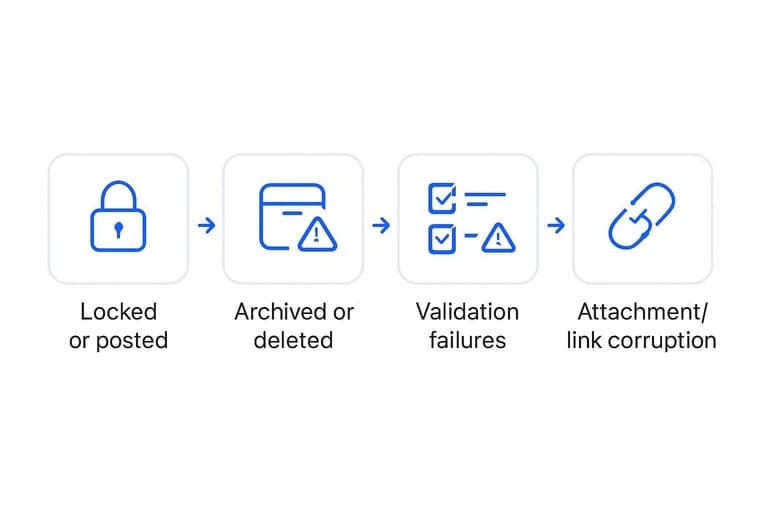
Attachment/link corruption
A corrupted attachment or related link can crash the entry view while everything else looks fine. You’re hunting for payloads that break rendering or exceed limits.
- Remove broken related links pointing to missing records
- Strip malformed metadata keys from attachment blobs
- Delete oversized attachments beyond UI or API limits
- Rebuild previews or thumbnails for linked documents
- Re-save the record to regenerate derived fields
If the form starts working after cleanup, add size and schema checks at upload time.
API and Backend Errors
When open entries fail, the UI is often telling the truth. Your backend call is failing, timing out, or getting blocked mid-flight.
Think like the server. If the request never succeeds, the form can’t save, even if validation looks clean.
Check network calls
Use DevTools to catch the exact request that fails and why. You need the endpoint, the status code, and an ID you can hand to backend.
- Open DevTools → Network, then retry the failed “Open Entry” action.
- Click the failed request, then copy the full URL and method.
- Record status code and response body, including any error code.
- Capture request ID or correlation ID from headers or body.
- Save a HAR file if the failure is intermittent.
Without a request ID, your backend team is guessing.
Fix 500/timeout
A 500 or timeout is usually payload, query cost, or a sick dependency. Your goal is to reduce work, reproduce fast, then escalate with evidence.
- Retry with a smaller payload, fewer fields, or fewer line items.
- Remove heavy filters, sorts, or search terms tied to the entry.
- Re-test from a different network to rule out path issues.
- Check server health dashboards for error rate and latency spikes.
- Escalate with timestamp, endpoint, payload size, and correlation ID.
If shrinking the payload “fixes” it, the server is your bottleneck.
Database contention
Backend errors can be database pain wearing an API mask. Look for “lock wait timeout”, “deadlock detected”, or a request that hangs then fails.
A quick tell is time-based: it works off-peak, then breaks during busy hours. Run the same entry creation against a staging or off-peak window, then compare query times and lock waits.
If you can reproduce it under load, ask for indexes, tighter limits, or a safer transaction scope.
Rate limits and WAF
Some “failures” are defenses doing their job. If you see 429s or blocked requests, your entry calls are getting throttled or filtered.
- Check for HTTP 429 and “Too Many Requests”.
- Look for 403 with WAF or bot messages.
- Slow request pacing, then retry.
- Whitelist your IP for testing.
- Verify WAF rules on entry endpoints.
If your fix is “wait and retry”, you’re dealing with policy, not bugs.
Run One Last Pass, Then Escalate With Proof
- Re-test after each change using the same reproduction steps (same user, record, browser, and time window) so you know what actually fixed it.
- If it still fails, collect a “minimum debug bundle”: exact symptom, timestamp, user/account, record IDs, screenshot of the error, console logs, and the failed network request/response (status, endpoint, request ID).
- Escalate with the classification you determined (permissions/UI-state/record-state/backend) and the checklist items already tried—this prevents duplicate work and speeds up a targeted fix.
Frequently Asked Questions
Does “stocks open entry failing” usually mean the market is closed or the platform is down?
Usually it’s a platform or account workflow issue, not market hours. Check the service status page and try a different network/device to quickly rule out an outage.
How can I tell if my stocks open problem is browser-specific or account-specific?
Test the same action in an incognito window and in a second browser, then try on mobile. If it fails across devices, it’s usually account/permissions or a backend issue; if it fails in one browser only, it’s typically cache/extensions.
What error logs or diagnostics should I capture before contacting support about stocks open failures?
Save a screenshot of the error, the exact time (with timezone), the stock/record ID, and your browser version. Also export the browser console errors and a HAR file from DevTools Network to help support pinpoint the failing request.
How long should I wait before retrying when stocks open entries fail due to timeouts or 5xx errors?
Retry after 2–5 minutes, then again after 15 minutes if the issue persists. If you see repeated 5xx errors or timeouts for 30+ minutes, escalate with your request ID/correlation ID if available.
Can I use a CSV import or API to create stocks open entries if the UI keeps failing?
Often yes, as long as your role has write permissions and the endpoint/import feature isn’t impacted by the same outage. Validate with a small test record first and confirm the entry appears correctly in the UI after creation.
Fix Entries, Find Leaders
Once your stocks-open entries are stable again, the next bottleneck is quickly surfacing the best names and understanding the market regime behind them.
Open Swing Trading helps you rank ~5,000 stocks by daily relative strength, breadth, and sector/theme rotation so you can build a focused watchlist in minutes—get 7-day free access with no credit card.
Sources
- HTTP response status codes (reference) — MDN Web Docs — referenced in 11-Symptom Fix Checklist
- Network features reference — Chrome DevTools (Preserve log, disable cache, failed requests) — referenced in Hard refresh assets