Traders Daily Watchlist Empty? 9 Fixes
A practical checklist for restoring an empty Traders Daily watchlist—confirm the exact symptom, switch to the correct list, reset filters, verify market data permissions, force account sync, and clear app cache without losing your setup.
Traders Daily Watchlist Empty? 9 Fixes
A practical checklist for restoring an empty Traders Daily watchlist—confirm the exact symptom, switch to the correct list, reset filters, verify market data permissions, force account sync, and clear app cache without losing your setup.
Your Traders Daily watchlist shouldn’t disappear—but when it does, it usually isn’t “gone.” It’s often the wrong list selected, a filter hiding everything, or a sync hiccup that makes the view look empty.
This checklist walks you through quick confirmation steps and six targeted fixes: identifying the empty view, undoing hidden filters and sorting, validating market data permissions, ensuring you’re logged into the right account, forcing a resync, and safely clearing cache so your symbols show up again.
Confirm the symptom
Before you change settings or reinstall, pin down what “empty” actually means. One blank screen can hide four different failures, like a Home widget showing “No symbols” while the Watchlists tab still has tickers.
Which view is empty
Different screens fail for different reasons, so name the exact view that looks blank. You’re looking for the first place where your symbols stop appearing.
- Home widget shows no tickers
- Watchlists tab shows zero lists
- Symbol search returns no results
- Alerts-only view shows nothing
If only one view is empty, the problem is usually UI state, not your data.
Quick evidence capture
Capture proof first so you can confirm the fix later. It also turns a vague complaint into a useful support ticket.
- Note app version and build number.
- Record device model and OS version.
- Write the exact time and timezone.
- Note network type: Wi‑Fi, LTE, VPN.
- Take screenshots of the empty view and settings.
Five minutes here can save an hour of guesswork later.
Common false empties
Sometimes the watchlist isn’t empty; it’s just not rendering what you expect. A classic example is a filter set to “Favorites” when nothing is starred, so you get a clean blank screen.
Sorting, active filters, and a disconnected brokerage can all hide real symbols behind an empty-state message. Fix the visibility layer before you chase missing data.
Fix 1: Wrong watchlist
Seeing a blank Watchlists screen is often just a context switch. The app is showing a different list than you think, like a shared “Tech” list instead of your personal “Tech A+”.
Switch active list
- Open the watchlist selector at the top of Watchlists.
- Confirm the exact list name, not just the first word.
- Check you’re in the right account context, if you have multiple.
- Verify whether the list is shared, copied, or personal.
If the name or context is off, the “empty” list is real, just not yours.
Restore last viewed
- Fully close and reopen the app.
- Go directly to Watchlists, not Quotes or Search.
- Open Recents and pick the last non-empty list.
- Back out, then re-enter Watchlists to confirm it sticks.
Once Recents shows a non-empty list, you’ve proven the data is fine.
Prevent future swaps
Pin your primary list so it’s always first and hard to miss. Rename near-duplicates like “Tech” and “Tech 2” to “Tech (Core)” and “Tech (Earnings)”.
Fewer lookalike names means fewer accidental taps.
Fix 2: Filters hiding
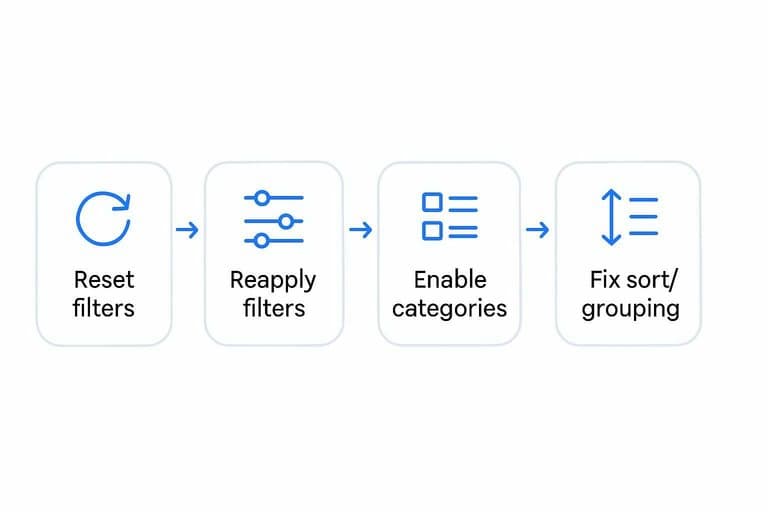
Filters can wipe your watchlist without deleting anything. One bad toggle like “Stocks only” can turn into “Nothing matches.”
Clear every filter first, then add them back one at a time.
Reset filters
Start here because it’s the fastest way to prove your data still exists. You’re trying to get back to an unfiltered baseline.
- Open your watchlist filter menu.
- Tap Reset or Clear All.
- Confirm symbols repopulate immediately.
- Reapply filters one by one.
If the list returns after a reset, your “empty watchlist” was just a filter stack.
Check hidden categories
Category toggles are silent killers because they feel harmless. One excluded universe can remove every symbol.
- Enable Stocks and ETFs
- Enable Options only if needed
- Enable Crypto if you track it
- Include OTC if applicable
- Allow Delisted only when researching
If three categories are off, you probably built a watchlist-shaped void.
Sort and grouping
Sorting and grouping can make a full list look empty by collapsing everything into closed sections. You’ll see a blank screen, but the symbols are sitting under a hidden header like “A–D” or “Inactive.”
Set sort back to the default, then disable grouping and expand any collapsed sections. The moment rows reappear, you’ve found the illusion, not a data loss.
For more examples of how filters can create a “false empty,” see TradingView’s notes on why a screener can be empty.
Fix 3: Data permissions
Your watchlist can look empty even when the symbols still exist. The usual culprit is missing entitlements, regional blocks, or a data feed that never connects.
Market data status
If quotes never load, the watchlist often renders as blank or “–”. Find the market data or quotes status indicator, then verify what it says.
- Check “Real-time” vs “Delayed” market data
- Look for a red or “Disconnected” feed icon
- Open a chart to see if data loads
- Test quotes on a different symbol
- Compare web vs mobile behavior
If nothing prints anywhere, you have a feed problem, not a watchlist problem.
Reaccept agreements
Entitlements can expire after updates, password resets, or account changes. Reaccepting agreements forces a fresh entitlement sync.
- Sign out, then sign back in.
- Open Settings → Market Data Agreements.
- Accept any prompts or new terms.
- Fully close the app, then relaunch it.
- Reopen the watchlist and wait 30 seconds.
If the list repopulates after relaunch, the issue was stale entitlements.
Regional limitations
Some symbols are restricted by your country, account type, or exchange permissions. Use a “known-good” symbol as a control, like SPY or QQQ, and see if it loads.
If the control works but your symbols don’t, you’re hitting a region or entitlement wall.
Fix 4: Account sync
Watchlists often look “empty” when you’re in the wrong identity or workspace. The app is fine. You’re just viewing a different cloud.
Example: your list lives in a paper account, but you opened live.
Verify login identity
Watchlists are account-scoped, not device-scoped. Confirm you’re looking through the same door you used to create it.
- Match email/username to the original account
- Confirm the correct workspace or profile is active
- Verify paper vs live environment matches
- Check brokerage connection is the same account
- Re-auth if the broker token expired
If one detail differs, you’re not “missing” a list. You’re in a different universe.
Force a resync
Sync can stall after sleep, bad Wi‑Fi, or a stale session. Nudge the client to reconnect and fetch fresh data.
- Toggle airplane mode for 10 seconds.
- Disable it, then reopen the app fully.
- Pull-to-refresh the watchlists screen.
- Sign out, then sign back in.
- Reconnect the brokerage integration if you use one.
If the list reappears after step 3, your issue was a stuck session, not deletion.
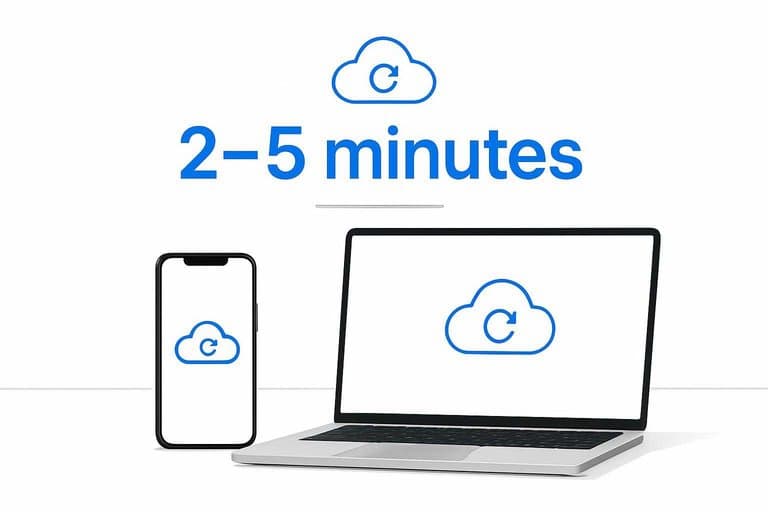
Cloud sync delays
Cloud sync is rarely instant across devices. Give it a few minutes before assuming your watchlist vanished.
You’ll see this after fast edits, like renaming a list to “Earnings Week” on desktop. Then mobile shows the old name.
Wait 2–5 minutes, and avoid editing the same watchlist on two devices at once. Last write wins.
Interactive Brokers also notes that watchlists are cloud-saved and available across platforms in its Monitor Panel guide.
Fix 5: App cache
Cached watchlist data can rot and render as “empty,” even when your lists still exist. Clear it and force a local rebuild so the app stops reading bad snapshots.
Soft refresh first
A quick UI reset often brings the list back without touching data.
- Exit the watchlist screen.
- Switch to another tab for 10 seconds.
- Return and wait for it to load.
- If blank, force-close the app.
- Reopen and check again.
If a soft refresh fixes it, your data is fine and the renderer was stuck.
Clear cache safely
Clearing cache fixes corrupted local files, but you need to protect your lists first.
- Look for an in-app “Clear cache” or “Reset data” option.
- Confirm your watchlists sync to cloud, or export them.
- Clear cache, then sign in again.
- Reopen the watchlist and wait for a full sync.
- If no cache option exists, reinstall after backup confirmation.
If you can’t prove your lists are backed up, don’t “nuke and pray.”
When reinstall helps
Reinstall is the cleanest way to rebuild the local watchlist database. Use it when the watchlist is empty on this device, but looks normal on another device or the web. That pattern screams local corruption, not an account problem.
Restore Your Watchlist in 10 Minutes
- Capture quick proof (screenshot the empty view + note the view name, filters, and account email) so you can compare after each change.
- Switch to the correct watchlist and restore the last viewed list, then reset filters/sort/grouping to reveal hidden symbols.
- Confirm market data permissions and reaccept agreements if prompted, then verify you’re logged into the intended account and force a resync.
- If it’s still empty, do a soft refresh first, then clear cache safely; reinstall only after you’ve confirmed your lists are synced to the cloud.
Frequently Asked Questions
Why does my traders daily watchlist look empty only on mobile but not on desktop?
Most often it’s a platform-specific sync or local storage issue. Force a manual sync, update the app, and log out/in on mobile to pull the server watchlist again.
How do I restore a deleted traders daily watchlist or lost symbols?
Check for a “Recently deleted”/restore option and your platform’s cloud backups first. If there’s no restore feature, export history or trade logs can help you rebuild the list quickly, but true deletion is usually permanent.
Can a market holiday or after-hours session make traders daily watchlists appear empty?
Usually the symbols still show, but quotes may be blank or marked closed. If your platform hides inactive/closed markets by default, switch to “show all symbols” or disable “hide unavailable” settings.
How can I prevent my traders daily watchlist from going empty again?
Use one primary cloud-synced watchlist, keep a weekly CSV export backup, and avoid running multiple workspaces/accounts with separate lists. Also turn on sync confirmations so you notice failures immediately.
What should I check before contacting support about a traders daily empty watchlist?
Record your account ID, device/OS/app version, time of the issue, and a screenshot showing the empty state. Include whether the same watchlist loads on web vs mobile to speed up diagnosis.
Rebuild Your Daily Watchlist
Once the technical glitches are cleared, the bigger challenge is having a repeatable process to surface strong leaders every day without drowning in noise.
Open Swing Trading ranks ~5,000 stocks daily with relative strength, breadth, and sector/theme rotation context so you can build a focused watchlist in 5–15 minutes—get 7-day free access with no credit card.
Sources
- TradingView Support — Why is my Screener empty? Why are there no matches in the Screener? — referenced in Sort and grouping
- Interactive Brokers Guides (TWS) — Monitor Panel (watchlists + filtering + cloud sync) — referenced in Cloud sync delays